Introduction
I originally wrote this article around three years ago, but I’ve since revamped my website, so I thought it would be fitting to rewrite this article. I started my website in 2018 as a middle schooler with elementary HTML and CSS skills to boot (before the AI era) and the website itself so far went through a hundred git pushes since then. But Claude Code has made this process so efficient, and I’ve gotten my website to a point where I’m happy with it. I will say it is much easier to start with an existing website and iterating on top of it, but I will go over briefly how I started up my website. But I will mostly be outlining how I prompt engineered Claude to give mockups and how I debugged with Cursor! It’s a whole new way of web development and I’m excited to share my journey.
Getting Started
Static Site Generator
Ok, so we have the website made directly from scratch or we have the one made from a static site generator. A static site generator just makes the repetitive task of writing HTML and CSS easier. For example, let’s say that you have 6 different pages on your website and you have a nav bar that you want present on all pages. To insert that, you have to copy and paste that code for the header into each page. Ok, so that doesn’t sound that bad. Although, the bad part is when you have to change a detail in the header, and then you have to change that on all the pages. A static site generator prevents all this so that you can just make your changes in one place and it’ll update on all your pages.
The generator that I use is Jekyll, and I chose this because it’s blog aware. Meaning, that it has a blog template type of thing embedded it’s super easy to download. It takes Markdown files and translates them into webpages, and using Markdown is really efficent and easy to learn along the way.
Of course, there are many other generators, like Gatsby.
Mockups with Claude
Cursor Prompts
Google Analytics
If you have a blog (like me) or a project on your website where you want people to look at it – you probably want analytics. This allows you to look where your viewers are from, how old they are, or most importantly, how many you have. It’s really easy to activate. All you have to do is connect your website url to the website, and then you will see all your stats. Below is an example of what my page looks like …
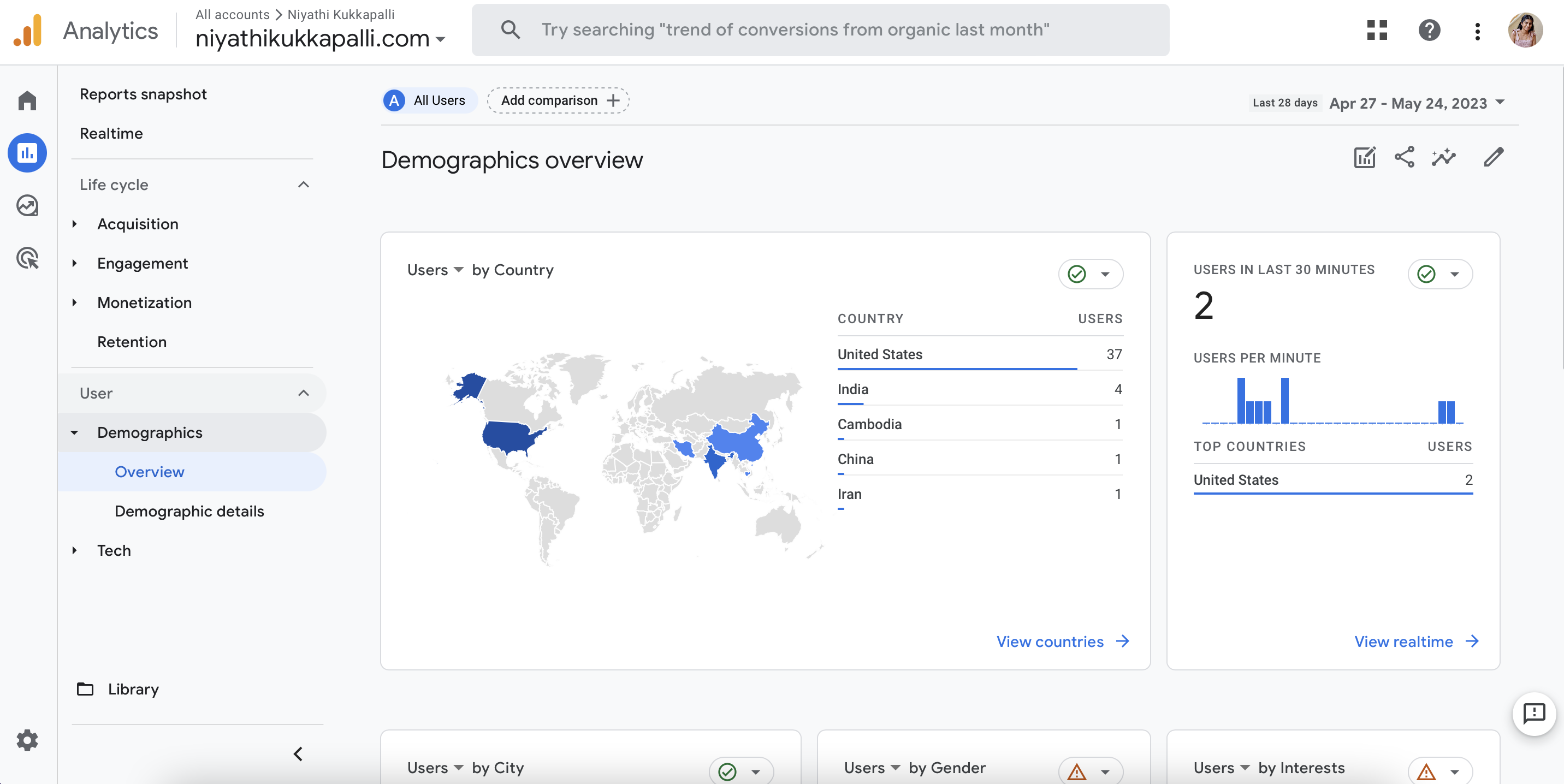
For example, the one that I use the most is the “Reports snapshot” feature which tells you how many users you’ve had in that week and what countries they are from although it’s hard to discern whether they are bots or not; I’ve gotten a lot from Cambodia recently. It’s pretty addicting to look at the analytics and just see who is looking (when someone besides my friends and family looks I get pretty excited).